-

【旅行記】 韓国の仁川空港に行ってきた(SES登録、カプセルホテル、おすすめトラベルグッズ)
韓国・仁川空港でSESに登録し、空港内のカプセルホテル「ダラクヒュー」に宿泊した旅行記。登録時の注意点やホテルの様子、おすすめのトラベルグッズを紹介します。
-

【ハングルアプリ開発日誌】 ユーザー行動観察調査からのコンテンツ作り直し...
ハングル学習アプリをユーザーに操作してもらい、読まれなかったコンテンツを40枚から11枚に圧縮。再調査とデザイン改善の過程をまとめました。
-

『すごい習慣』アプリに仕込んだマイクロインタラクションについて語る
『すごい習慣』に仕込んだマイクロインタラクションがあまり気づいてもらえないので紹介します。
-

【ハングルアプリ開発日誌】 目標を決めて、コンテンツを整えて、クイズ機能を詰めた
8月末の審査提出を目標に、ハングル学習コンテンツとクイズ画面をブラッシュアップしました。
-

Kindleの期間限定無料マンガが読める『tadayomi.com』をちょこっと更新、おすすめマンガのご紹介
Kindleの期間限定無料マンガを探せる「tadayomi.com」の更新内容と、作業中に見つけたおすすめマンガをご紹介します。
-

【2026年7月】 最近読んで面白かったマンガまとめ(異世界転生系を除く)
tadayomi.comの運営中についつい読み込んでしまった、最近のおすすめマンガをまとめました。今回は異世界転生系を除く6作品を紹介します。
-

【ハングルアプリ開発日誌】 テンションあげるために少しだけデザインについて考える
韓国っぽいデザインとは...?Pinterestで雰囲気を探り、Figmaで試作してiOSに組み込むまで。標準アプリっぽさから抜け出してテンションをあげる、ハングルアプリ開発日誌の第4回です。
-

開発環境の起動は実行ファイルにしておくと便利
開発を始めるたびにVS Codeを開き、サーバーを起動し、ブラウザでportを確認するのが面倒になったので、一発起動できる実行ファイルにしてみた話。
-

【ハングルアプリ開発日誌】 コンテンツの詳細化に着手
「あいうえお」の憶え方コンテンツをFigmaで構成し、Claude CodeでHorizontal ScrollViewのカードUIを実装。カードサイズやIndicatorを微調整し、実機のダークモードで手触りも確認した回。
-

【ハングルアプリ開発日誌】 噂のClaude Fable 5による設計...からのアプリUI試作へ
Claude Fable 5でハングル学習アプリの設計を試みたら見事にハマった話。プロンプトの改善からUI設計(学習編・復習編)、SwiftUIでの試作まで、失敗も含めてリアルな開発過程を記録。
-

さめがめ風のカジュアルパズルゲーム『POP*POP』を作ってみた
昔懐かしの「さめがめ」風パズルゲーム『POP*POP』をiOS向けに自作。独自のボーナスタイルやキャラ変更機能を搭載し、AI・フリー素材を活用した開発の学びもまとめます。
-

【ハングルアプリ開発日誌】 「アプリの作り込みってどうしているの?」とよく聞かれるので、アプリの開発日誌をゆるっと始めてみます
「アプリの作り込みってどうしているの?」という質問に答えるべく、ハングル学習iPhoneアプリの開発日誌をスタート。Claude Codeで10分プロトタイプ作成から始めていきます。
-

【2026年版】 ソウル旅行に行くときに知っておくと良さそうなこと
ちょいちょいソウルに行くようになったので、旅行前に知っておくと役立つことをまとめました。空港・交通カード・ナビアプリ・飲食店のコツなど、実体験ベースで。
-

3Dプリンターでこれまで印刷したなかで一番気に入っているモデル「Double Face」について語る
3Dプリンターで印刷したなかで一番のお気に入り、顔型パズルモデル「Double Face」の紹介。組み立て方と2枚目の印刷失敗を解決するコツも。
-

Kindleの「期間限定無料マンガ」だけをまとめたサイトを作ってみた(tadayomi.com)
疲れたときのお供、Kindle無料マンガをさくっと探せるサイト(tadayomi.com)を作ってみました。こだわり検索が便利です。
-

/review-post なるスキルを設定してから文章を書くのが楽しくなった
Astro + Claude Code でブログを書くとき、`/review-post` というカスタムスキルを作って運用したら、文章チェックが捗って書くのがとても楽しくなった。その魅力と仕組み。
-

バッドなデザインはグッドなリマインダーになるよね、というお話
「バッドなデザインはグッドなリマインダーである」昔ブログで紹介した言葉を再録。ついでに挑戦したSeedance 2.0での動画生成の話。
-

Manusで挫折した「画像から動画」をSeedanceで試してみたらすごかった
動画生成AIをいろいろ試している中で、Manusでは画像を渡してもうまく生成できなかったものが、Seedance(Dreamina経由)だと驚くほど自然に作れた話。コストや使えなかったケースもメモ。
-

『サブスク管理』アプリのショート動画をManusで作ったお話、かかったコスト
AIで動画広告を作れる時代。自作の『サブスク管理』アプリのショート動画を、話題のAIエージェントManusで制作してみました。生成結果、気になるコストまでを公開します。
-

AI開発は並行作業&エージェント中心のUIに?満を持して登場した『Claude Code』のデスクトップ版がとても良い...
Claude Codeのデスクトップ版を試してみたら、サイドバーでの複数プロジェクト管理、アプリ内ブラウザ、デザインモード、クイック起動まで揃って体験が抜群でした。
-

周辺視野を鍛えられる?数字をタップしていくカジュアルゲーム『Tap Tap 25』をリリースしました
1から25を順番にタップしていくカジュアルゲーム『Tap Tap 25』をリリースしました。周辺視野が鍛えられると話題のあのゲームです。広告無し、完全無料で全世界配信中。
-

ダイエット・筋トレ・勉強のお供に!iPhoneアプリ『すごい習慣』をリリースしました
iPhoneの習慣化アプリ「すごい習慣」をリリース。広告なし・無料で使えるシンプルなアプリの機能紹介と、AI駆動開発での学びをまとめました。
-

【アプリ開発日誌】 行動観察調査がやっぱり大事...
アプリ申請前にユーザーテストを実施したら辛辣なフィードバックの嵐。行動観察調査の大切さを痛感した一週間の開発日誌。cmuxやCodexなど気になるツールの話題も。
-
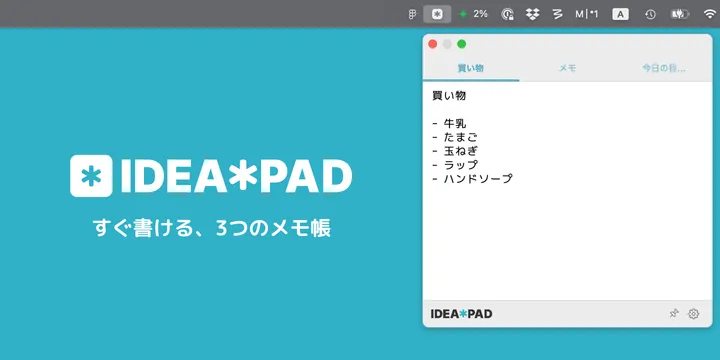
【macOS/iOS】 メニューバーに常駐する3ページ限定のメモアプリ、『IDEA*PAD』をリリースしました
メニューバーに常駐する3ページ限定のシンプルなメモアプリ「IDEA*PAD」をmacOS/iOS向けにリリースしました。iCloud同期対応、無料で利用可能です。
-

【アプリ開発日誌】 Apple AdsのマーケティングをGitHub Actionsで自動化した
Apple Ads APIの発見からGitHub Actionsでのマーケティング自動化まで。App Store審査の遅延対策やGhosttyへの移行など、今週の開発トピックをまとめました。
-

【アプリ開発日誌】 AIでデジタルマーケティング実践中、PencilやZellijを導入などなど
AIによるApple Ads運用の実践レポート、UIデザインツールPencilの導入、Claude Hooksでの音声通知設定、tmuxからZellijへの移行など、今週のアプリ開発まわりの近況まとめ。
-

【アプリ開発日誌】 ときどき日記、サブスク管理...などなど、最近の開発状況まとめ
アプリ開発日誌を週刊化。ときどき日記、サブスク管理、韓国語タイピングなど、現在開発・運用中のアプリをまとめてご紹介します。
-
【2026年2月版】 最小構成ではじめるOpenClawセットアップガイド(HOSTINGER + Discord)
OpenClawをHOSTINGERのVPSにデプロイしてDiscordボットとして動かすまでの手順を日本語でまとめました。最小構成で月1,500円ほどから始められます。
-
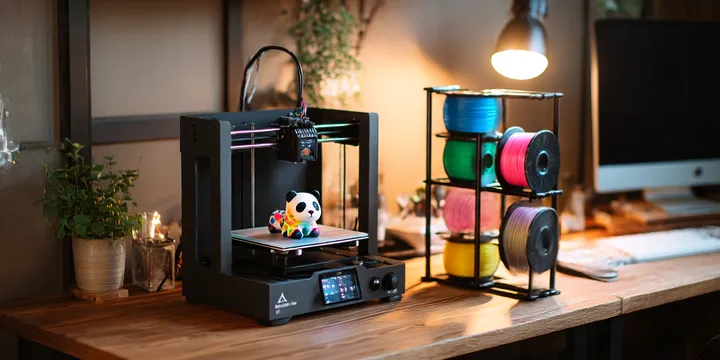
Bambu Lab A1 mini + AMS 2 Pro + BIQU Panda Stackで、快適3Dプリンター生活を始める方法
Bambu Lab A1 miniにAMS 2 ProとBIQU Panda Stackを導入。購入先の選び方から組み立て、接続、多色印刷テストまでの手順をまとめました。
-
シリコンバレーの注目スタートアップランキングを毎朝配信!『Product Hunt Pickups』を作ってみた
Product Huntの注目プロダクトをAI要約付きで毎朝お届けするWebサービスを作りました。
-
macOS用のClaudeUsageBarがやっぱり便利
Claudeの使用率をmacOSメニューバーに常時表示できるClaudeUsageBarの紹介と設定方法。
-

AeroSpaceを使い始めた人向けのTips集
macOS用のウィンドウマネージャ、AeroSpaceの便利Tips集です